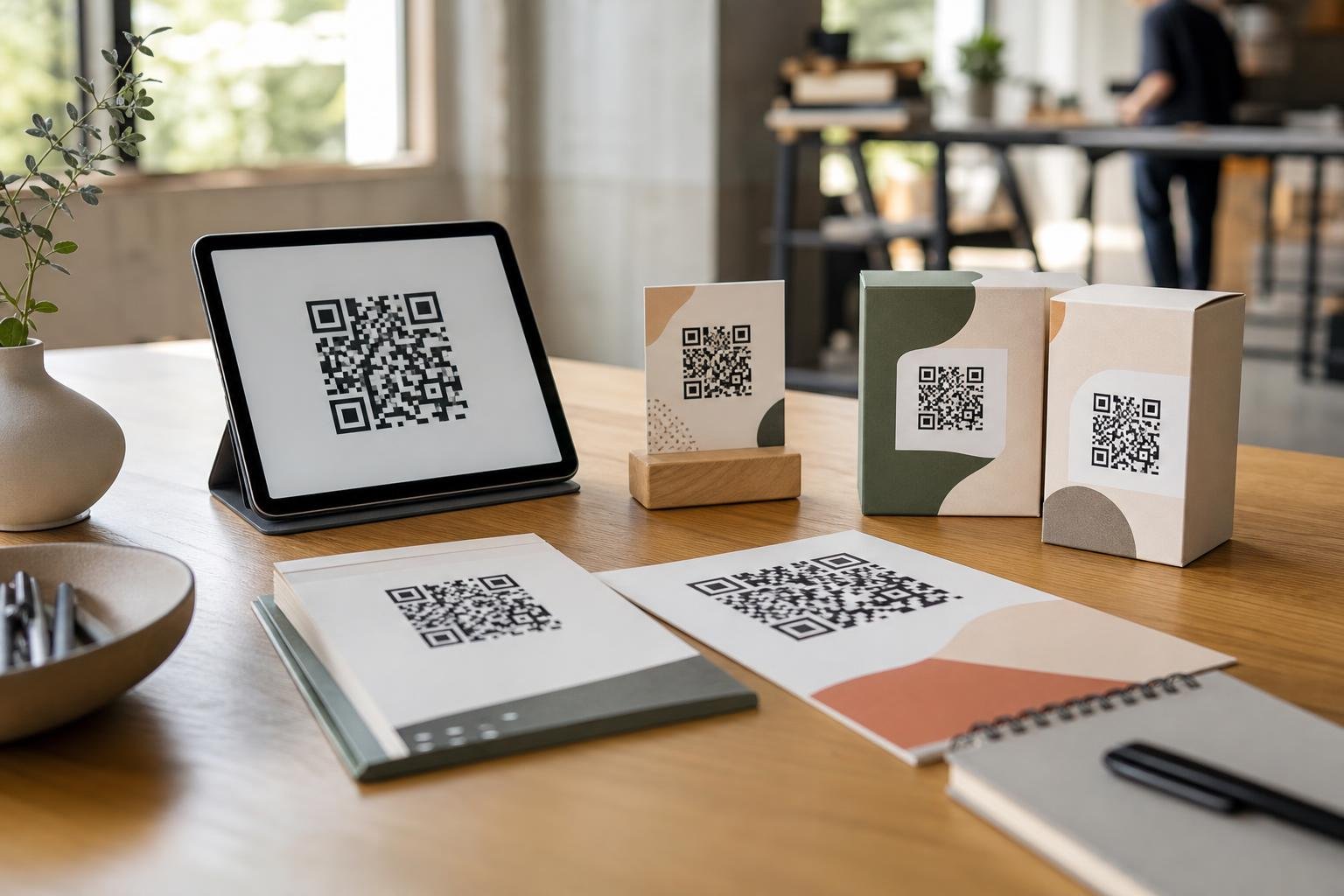
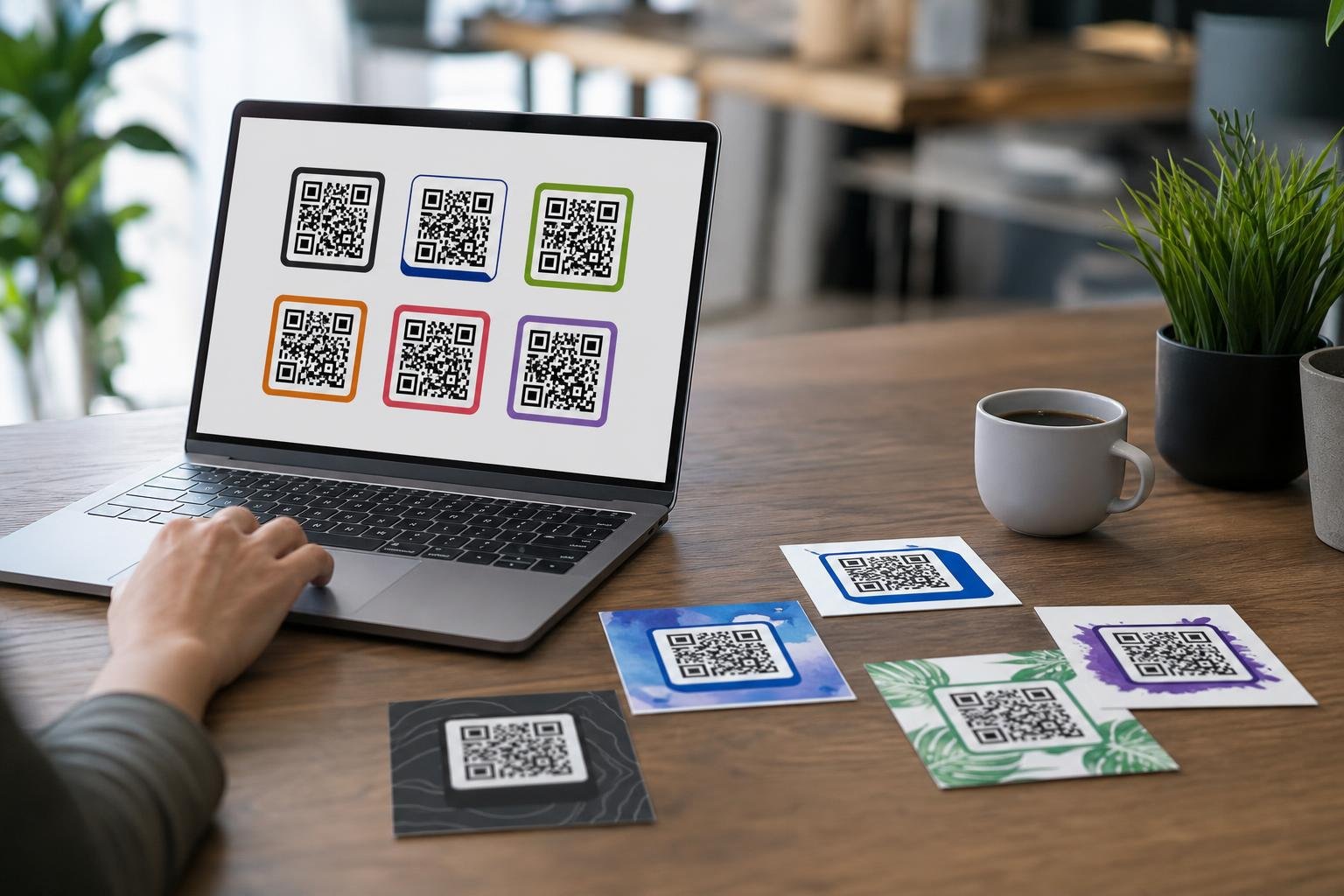
Adding custom qr code frames and colors turns an uninspired black-and-white grid into an engaging brand asset that begs to be tapped. Plain codes get overlooked on posters, packaging, and table tents, but thoughtful accents pull the eye straight toward your call to action. Done wrong, heavy styling can break scannability on older mobile cameras. Done right, it elevates your brand and sharply increases customer engagement without sacrificing reliability.
Why Custom Frames and Colors Drive More Scans
A generic square matrix looks like logistical clutter. When you wrap that matrix in your company palette and an attractive border, customers instantly recognize who is speaking to them.
Branding your links builds subconscious trust. Customers hesitate to scan anonymous codes on storefronts or menus because they have no idea where the link leads. A clear frame acts as a visual seal of quality, assuring visitors that the destination is legitimate.
Visual styling directly improves physical performance. According to industry analysis by Kleap in 2026, personalizing QR code designs with brand colors, embedded frames, and call-to-action text increases scan rates by 20% to 30% compared to standard monochrome codes. A pop of deliberate styling turns passive onlookers into active mobile visitors.
The Science of Contrast: How Optical Decoders Read Color
Before picking your favorite hues, you need to understand how mobile cameras process codes. Smart scanners do not perceive reds, blues, or golds the way our eyes do.
Under ISO/IEC 18004, standard QR codes are defined as dark modules against a lighter background because optical decoders begin reading by binarizing images into light and dark values rather than recognizing distinct hues. If you invert this setup by putting pale yellow dots on a dark blue background, many native camera apps will struggle or fail entirely.
Keep foreground elements noticeably darker than the canvas behind them. Technical testing documented by QR Nova recommends a minimum contrast ratio of 4.5:1 between the code's foreground modules and its background to prevent scan failures on budget mobile cameras.
Contrast Ratios at a Glance
| Foreground Tone | Background Tone | Est. Contrast | Scannability Result |
|---|---|---|---|
| Deep Navy (#001A33) | Crisp White (#FFFFFF) | 16:1 | Flawless on all devices |
| Charcoal (#222222) | Light Cream (#FFFDF5) | 14:1 | Excellent reliability |
| Forest Green (#1B4332) | Soft Mint (#E8F5E9) | 6.5:1 | Strong, passes easily |
| Mustard Yellow (#E5A93C) | Pure White (#FFFFFF) | 2.1:1 | Fails on budget lenses |
| Medium Grey (#888888) | Light Grey (#E0E0E0) | 2.4:1 | Unreliable, poor read |
Frame Anatomy and the Mandatory Quiet Zone
Frames do more than look sharp. They create visual boundaries and provide real estate for your call to action. However, the border around the code must respect technical boundaries.
The international standard for QR codes, ISO/IEC 18004, mandates a quiet zone of at least four modules of unobstructed margin on all sides of the matrix so scanners can differentiate the code from surrounding graphics and frames. If your frame graphic bleeds into the corner patterns, camera software cannot isolate the data matrix.
Furthermore, Denso Wave specifies that the quiet zone must remain an uncropped, plain margin that contains no text, borders, or design elements. Respecting this clean white space protects your code when printed on rough cardstock or curved bottles.
Never distort the corners of the code grid. Technical guidelines published by QRLynx emphasize that custom shapes or color gradients must never obscure the finder patterns—the three distinctive large squares in the corners—which scanners require to calculate orientation and perspective. If those three corner eyes blend into your frame design, scanning fails instantly.
Crafting High-Converting Call-to-Action Text on Frames
A frame without text misses half its potential. The frame should explicitly tell the user why they should pull out their phone right now.
Clear, action-oriented instructions always beat clever ambiguity. Design guidelines by Tabres in 2026 highlight that frames paired with specific, benefit-driven call-to-action phrases (such as "Scan for the Menu" in five words or fewer) significantly outperform generic labels like "Scan Me".
Match the prompt to your environment. Retail shops can use "Scan for 15% Off," while event organizers benefit from "Scan for Event Schedule." Restaurants see immediate success with prompts like "View Wine List & Specials." If you need to revise those offers later, pair your design with dynamic QR codes so you can update target destinations without reprinting marketing collateral.
High-Impact Call-to-Action Ideas
- In-Store Retail: "Scan for Exclusive Deals" or "Check In-Store Stock"
- Hospitality & Dining: "Scan for Food Menu" or "Join Guest Wi-Fi"
- Live Events: "Scan for Stage Times" or "Download Digital Ticket"
- Customer Service: "Chat on WhatsApp" or "Read Safety Manual"
Styling Safely with Error Correction and Logos
When you start customizing frames, adding center logos, and applying color themes, you rely on the built-in mathematical resilience of the code matrix.
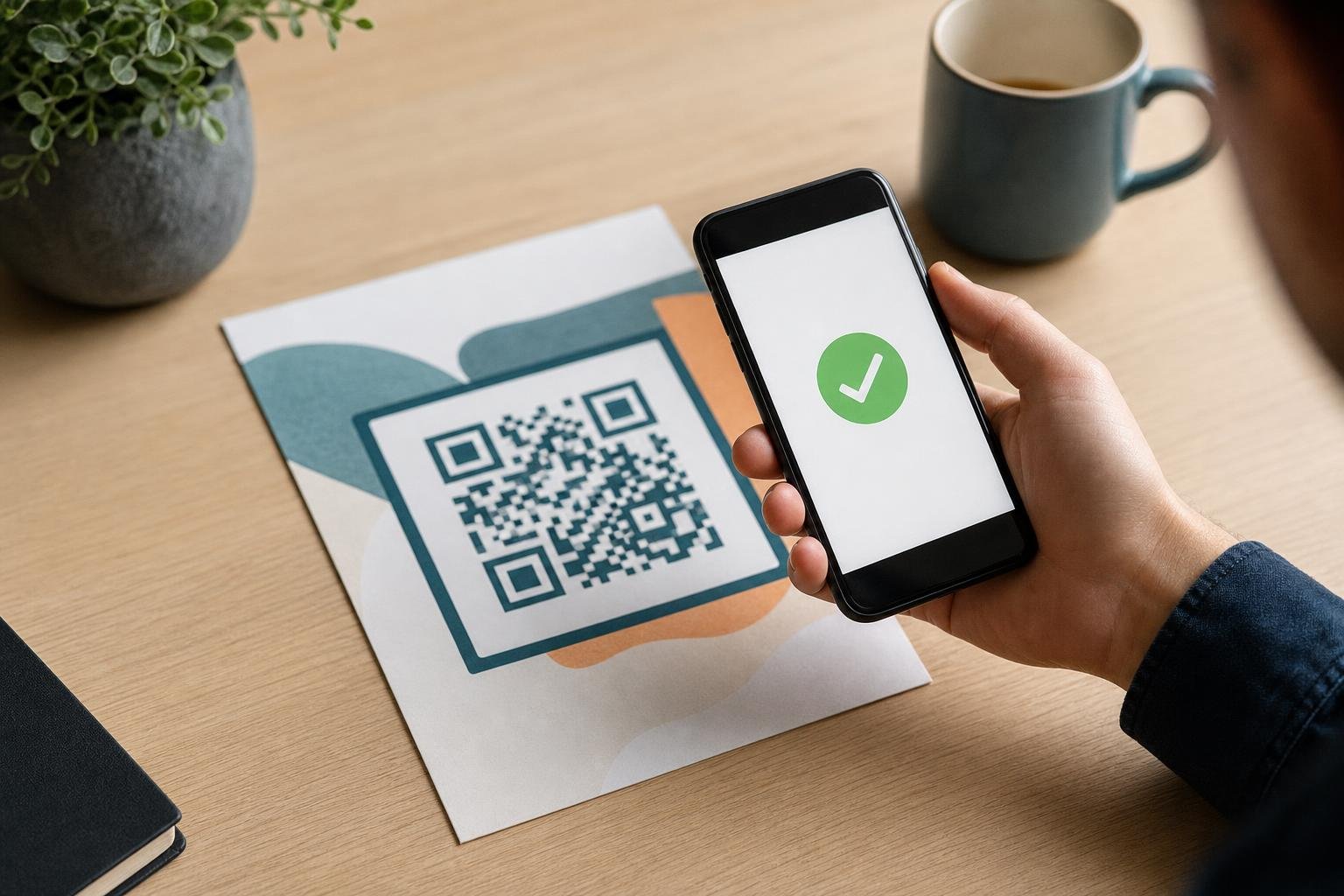
QR codes utilize Reed–Solomon error correction across four standard levels: Level L (7%), Level M (15%), Level Q (25%), and Level H (30%), with Level H required when overlaying center logos or custom artwork over the data grid. Using Level H restores data even if up to 30% of the graphic is masked by a brand badge.
Our platform makes this balance effortless. With our custom QR code design suite, you can choose custom frames, apply brand hex codes, and drop in brand badges while automatic scan testing verifies readability in real time. We also cover logo placement techniques in our deep dive on how to build your brand with a custom logo QR code generator.
Keep error correction in mind when selecting output formats. Always export print jobs to high-resolution vector formats like SVG or PDF to eliminate fuzzy edges that confuse optical sensors. For digital screens, crisp PNG files work best.
Step-by-Step: Adding Custom Frames and Colors on Swoo.se
Creating polished, professional codes takes less than two minutes when you use the right workflow.
- Pick your destination type: Head to Swoo.se and select what your code links to, such as a website URL, PDF menu, WhatsApp chat, or Wi-Fi login.
- Set your core colors: Choose a deep foreground tone that matches your branding. Pick a crisp, light background that ensures a contrast ratio well above 4.5:1.
- Select your frame style: Browse borders ranging from pill shapes to sleek rectangular banners. Enter a concise call to action like "Scan for VIP Access".
- Incorporate your badge: Insert your logo inside the center of the grid. Ensure error correction is set to Level H so the artwork does not impede the reader.
- Export and test on physical devices: Download your code as an SVG for commercial printing or a PNG for quick web use. Before printing a thousand copies, test the graphic under varied lighting using at least two different smartphones.
If you run ongoing marketing campaigns, track who scans your new codes by reviewing QR code analytics directly inside your dashboard.
Frequently asked questions
Can I use pastel or neon colors for my QR code?You can use pastels for backgrounds, but avoid them on foreground dots. Optical readers evaluate contrast rather than color; light pastels and neons lack sufficient density against white paper, causing frequent camera scan failures.
Will adding a frame make the QR code print size too small?Frames increase overall dimensions, but the internal matrix must maintain its standalone minimum size. For standard print pieces like brochures or business cards, ensure the internal black-and-white data square stays at least 2 × 2 centimeters (0.8 × 0.8 inches).
Can I change my frame text or color after printing?Physical ink cannot be changed once printed. However, when using dynamic QR codes, you can change the target URL, redirect visitors to new seasonal menus, and check scan statistics without replacing your printed framed artwork.
Why does my camera fail to scan my framed QR code?The most common culprit is encroaching on the quiet zone. Ensure there is at least four modules of empty, plain space between your data grid and your decorative frame border so scanner lenses can detect the corners.
Sources
- 5 Ways to Personalise QR Code Designs for Maximum Engagement
- Can QR Codes Be Colored? Yes, With These Contrast Rules
- QR Code Design Ideas: Creative Examples for 2026
- What is a QR Code Quiet Zone and Why Does It Matter?
- QR Code Quiet Zone: 4-Module Margin and Design Rules | QRLynx
- 15 QR Code Frame and "Scan Me" Text Ideas That Actually Get Scanned (2026) - Tabres
- QR Code Best Practices: Size, Contrast, Error Correction, and Testing - DEV Community